 how-to
How to Install IP Cameras for Construction Sites
Table of Contents
- Pre-Installation Survey and Planning
- Construction Site Camera Placement Strategy
- Construction Site Camera Power Options
- Construction Site Camera Internet Connectivity
- Step-by-Step Installation Process
- Security Camera Footage Storage and Retention
- Testing, Troubleshooting, and Post-Installation Training
- Frequently Asked Questions
Last Updated: October 5, 2026
Pre-Installation Survey and Planning
Learning how to install IP cameras for construction sites starts with surveying your construction site before installation. A proper survey prevents costly mistakes and shortens installation day.
What the survey covers
Walk the entire property and identify coverage needs, building layouts, blind spots, power sources, network access points, and cable routing paths. Take photos and measurements.
Early discovery of issues like concrete walls, distant network access, or missing power outlets prevents costly return visits.
Document everything. Create a site map showing camera locations, power runs, and cable paths. Mark difficult areas. Note any structural challenges. This becomes your installation blueprint.
How long does a survey take?
A typical survey runs 1-2 hours for small sites and 2-3 hours for larger properties with multiple buildings or complex routing.
Pre-survey preparation that saves time
Before the surveyor arrives:
- Clear obstacles from cable paths and mounting locations.
- Verify internet connection and network hub accessibility.
- Confirm power availability and PoE switch capacity.
- Arrange site access (badges, codes, escorts).
- Notify crews to avoid blocking mounting locations during the survey.
What the survey determines about installation day
Survey findings affect installation time: cable routing complexity (15 minutes for simple runs, 45 minutes for complex routes), mounting surface difficulty (10 minutes for wood, 20-30 minutes for concrete/steel), and power/network distance (each 50 feet adds 15-20 minutes).
Documentation to share with your installer
Provide the installer with a site map showing camera locations, cable routes, power sources, network hub location, site access procedures, and structural challenges. This saves 30-60 minutes on installation day.
Construction Site Camera Placement Strategy
Prioritize entry/exit points, gates, equipment storage, and material staging zones. Mount cameras 8-10 feet high on structures (12-15 feet for outdoor perimeter). Use 90-110 degree viewing angles to cover corners with one camera. Position cameras away from construction debris and direct sunlight to avoid glare.
Construction Site Camera Power Options
PoE (Power over Ethernet) simplifies construction site installations: one CAT6 cable carries both power and data instead of separate runs. Verify your PoE switch can handle total camera load (5-15 watts per camera). Protect all connections with conduit in exposed areas.
Construction Site Camera Internet Connectivity
Wired ethernet is most reliable; wireless deploys faster but risks interference. Each 4MP camera uses 3-5 Mbps; verify your connection supports 20+ Mbps upload for multiple cameras. Consider cellular backup to maintain recording during outages.
Step-by-Step Installation Process
Most installations take 4-8 hours: small systems (2-4 cameras) 4-5 hours, medium systems (5-8 cameras) 6-7 hours, large systems (9+ cameras) 8-12 hours. Add 1-3 hours if the survey was skipped or conditions differ.
Phase 1: Arrival and site walkthrough (15-30 minutes)
The technician arrives and reviews the site map with you or the site manager. They confirm camera locations, verify access to power and network, and identify any changes since the survey.
Learn more about our services today! →
Phase 2: Cable runs (1-3 hours)
This is often the longest phase. The technician measures cable paths from your network hub to each camera location, marks routes that avoid construction activity, and pulls cables through conduit or along cable trays.
Time varies by:
- Cable length. Each 50 feet of cable adds roughly 15-20 minutes, including measuring, routing, and securing.
- Routing complexity. A straight run along a wall takes 15 minutes per camera. Running cable through multiple buildings, around obstacles, or through conduit takes 30-45 minutes per camera.
- Mounting surface. Cable on wood structures fastens quickly with clips. Cable on concrete or steel requires drilling anchor points, which adds 10-15 minutes per run.
- Weather protection. If cables are exposed to weather or construction activity, they need conduit or protective sleeves, adding 20-30 minutes per run.
The technician marks each cable at both ends so you know which camera it serves and leaves extra slack at camera locations for adjustments.
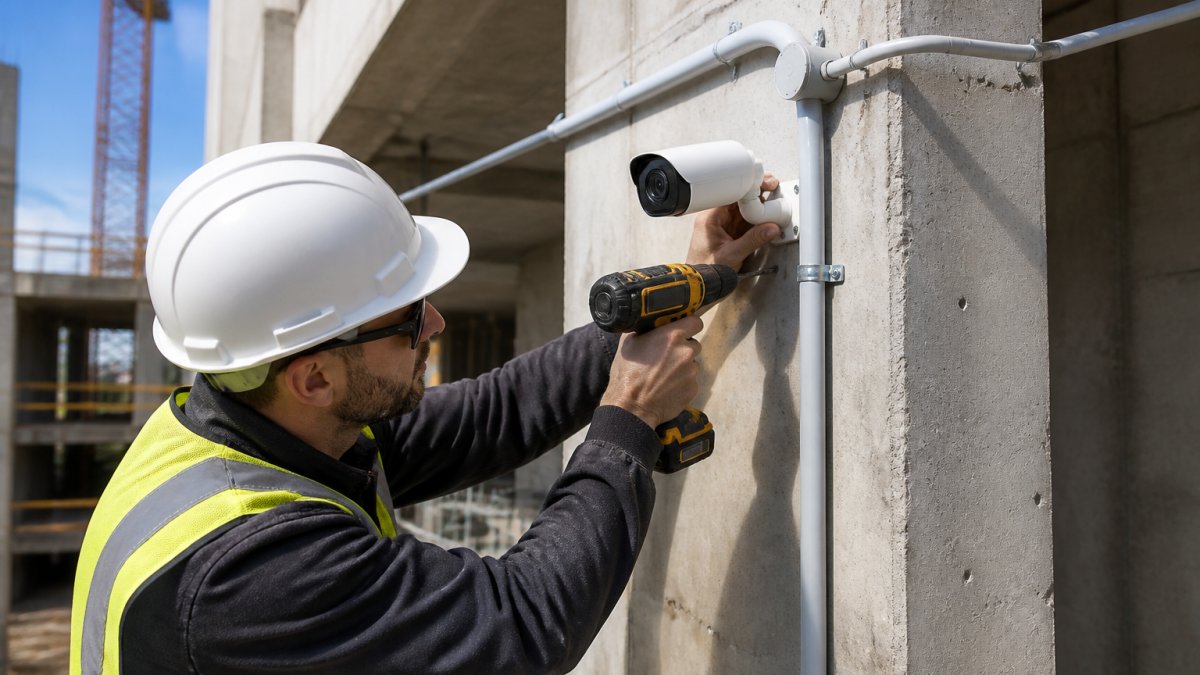
Phase 3: Mount hardware (1-2 hours)
The technician installs mounting brackets at each camera location. Time depends on the mounting surface:
- Wood: Standard screws into studs take 5-10 minutes per camera.
- Concrete: Requires masonry anchors or expansion bolts. Drilling and fastening takes 15-20 minutes per camera.
- Steel: Lag bolts or welded mounts take 15-25 minutes per camera, longer if welding is required.
- Height and access: Cameras mounted high or in difficult-to-reach locations take longer because the technician must use a ladder, lift, or scaffolding.
The technician checks mounting angles, aims cameras at target areas, and levels them properly. Tilted cameras miss important details.
Phase 4: Connect cameras and power (30 minutes-1 hour)
The technician attaches cables to cameras, powers up the system, and connects the network hub. Cameras should boot and appear on your network within 2-3 minutes.
Phase 5: Configure and test (1-2 hours)
The technician accesses each camera's management interface (usually through a web browser or mobile app), sets resolution and frame rate, configures recording settings, and enables motion detection if needed.
Time varies by:
- Number of cameras. Each camera takes 10-15 minutes to configure and test.
- System complexity. Basic systems with standard settings take less time. Systems with custom motion zones, scheduled recording, or integration with other software take longer.
- Image quality issues. If a camera has a dirty lens, poor focus, or inadequate lighting, the technician cleans the lens, adjusts focus, or recommends repositioning. This adds 10-20 minutes per camera.
Phase 6: System handover and training (30 minutes-1 hour)
Before leaving, the technician walks you or your site manager through the system. They show how to access live video, retrieve recorded footage, adjust settings, and respond to alerts.
This phase is essential. Most issues come from not understanding how the system works. A clear handover prevents confusion later.
What extends installation time
Several factors can push installation beyond the estimated range:
- Unexpected structural challenges. A wall is thicker than expected, a mounting surface is unstable, or a cable route is blocked by reinforcement or equipment.
- Power or network limitations. The network switch doesn't have enough ports, the power circuit is overloaded, or internet bandwidth is insufficient for the number of cameras.
- Weather delays. Rain, wind, or extreme heat slows outdoor work. High winds make ladder work unsafe. Heavy rain prevents drilling or outdoor cable work.
- Site access restrictions. Locked gates, escort requirements, or active work zones block access to camera locations.
- Equipment compatibility issues. A camera doesn't connect to the network, a cable is damaged, or a mounting bracket doesn't fit the surface.
- Scope creep. You decide to add cameras, change locations, or integrate the system with other security equipment after the survey.
How to keep installation on schedule
- Complete a thorough pre-installation survey and share findings with the installer.
- Confirm site access, power availability, and network readiness before the appointment.
- Clear obstacles from planned cable routes and camera locations.
- Notify site crews to avoid work in installation areas during the appointment.
- Have a site manager or decision-maker present to approve any changes quickly.
- Avoid major scope changes on installation day; schedule additions for a follow-up appointment.
Security Camera Footage Storage and Retention
Where your footage lives determines how long you can review it and how much you pay.
Learn more about our services today! →
Local storage uses a recorder or network-attached storage (NAS) device on-site. You maintain full control. No monthly cloud fees. Footage stays private on your network. The tradeoff is managing hardware and backup yourself.
Cloud storage uploads footage to a remote server. You access it from anywhere. Automatic backup protects against local device failure. Monthly costs add up, but you avoid hardware management.
Hybrid approach keeps recent footage locally for fast access and archives older footage to cloud storage. This balances cost and convenience.
Retention needs vary by use case. Construction sites typically keep 30-90 days of footage. This covers most incident investigations. Longer retention requires more storage capacity and higher costs.
Calculate your storage needs. A single 4MP camera recording 24/7 uses roughly 500GB per month. Multiple cameras multiply this quickly. Budget accordingly.
Testing, Troubleshooting, and Post-Installation Training
Installation isn't complete until you verify everything works.
Test video quality. Review footage from each camera on your monitor. Check for clarity, proper focus, and adequate lighting. Adjust camera angles if coverage gaps appear.
Test recording. Verify footage saves correctly. Check that motion detection triggers work if enabled. Confirm you can retrieve and play back recorded video.
Test remote access. Log in from a different device or location. Confirm you can view live video remotely. Verify mobile app access works if you're using one.
Document everything. Create a simple manual showing camera locations, login credentials, and basic troubleshooting steps. This helps whoever manages the system later.
Train your team. Show site managers how to access footage, adjust settings, and respond to alerts. Most issues come from not understanding how the system works.
Common problems and fixes:
- Blurry video: Check lens cleanliness. Adjust focus. Verify proper lighting.
- No video from one camera: Reseat the network cable. Power cycle the camera. Check network connectivity.
- Intermittent connection: Look for cable damage. Test with a shorter cable run. Check for interference sources.
- Poor image quality: Increase resolution if bandwidth allows. Improve lighting. Adjust exposure settings.
At Computer Experts Corp, we handle construction site camera installation and network setup for operations managers at logistics and construction companies in Santa Clara. Our team manages the entire process from site survey through post-installation training, ensuring your surveillance system integrates seamlessly with your existing IT infrastructure while maintaining network security and uptime.
Proper planning and careful execution make the difference between a surveillance system that works and one that frustrates you. A solid pre-installation survey catches problems before they become expensive mistakes. Strategic camera placement covers what matters. The right power and connectivity choices simplify ongoing management.
Computer Experts Corp can handle every phase of how to install IP cameras for construction sites, from initial site assessment through final system configuration and team training. We ensure your cameras integrate with your network security requirements and meet your operational monitoring needs. Get started with Computer Experts Corp and protect your construction assets with professional surveillance that actually works.
Frequently Asked Questions
How long does it take to install IP cameras on a construction site?
Installation time varies by system size and site complexity. A small 2-4 camera system typically takes 4-6 hours; a medium 5-8 camera system requires 8-12 hours; larger systems with 10+ cameras may take 16+ hours. Factors include cable routing distance, power infrastructure availability, network setup, and site accessibility. Professional installation usually completes in one to two days, while DIY installation may extend across multiple sessions depending on your technical skill level.
What are the best practices for construction site camera placement?
Position cameras to cover entry points, material storage areas, equipment zones, and blind spots. Mount cameras 8-10 feet high to prevent tampering and capture clear facial details. Ensure adequate field of view overlap between adjacent cameras to eliminate gaps. Account for dust, mud, and weather exposure by choosing weatherproof IP67-rated cameras. Angle cameras downward slightly to reduce glare and reflections. Test coverage before finalizing placement to verify all critical areas are monitored.
How do I power IP cameras on a construction site without permanent electricity?
Use Power over Ethernet (PoE) injectors or PoE switches to deliver power through network cables, reducing the need for separate electrical lines. Portable generators can power PoE equipment and network hardware if grid electricity is unavailable. Solar-powered systems with battery backup work well for remote site areas. Battery-powered wireless cameras offer flexibility but require regular charging. Temporary electrical panels or extension cords from site trailers provide direct power options. Consult with your electrical contractor to ensure all power solutions meet safety codes and site requirements.
How long should construction site camera footage be retained?
Retain footage for a minimum of 30 days to cover most incident investigations and disputes. Many sites keep 60-90 days of footage for comprehensive coverage. Storage duration depends on hard drive or cloud capacity, video resolution, and frame rate. Higher resolution footage consumes more storage; 4MP cameras use roughly twice the space of 1080p. Cloud storage offers scalability but incurs ongoing fees, while on-site Network Video Recorders (NVRs) provide lower long-term costs. Check local regulations and insurance requirements, as some jurisdictions mandate longer retention periods for liability protection.