 how-to
How to Secure Office Surveillance Cameras from Unauthorized Remote Access
Table of Contents
- Introduction to Securing Office Surveillance Cameras
- How to Secure IP Cameras: Passwords, Firmware, and Default Credentials
- Security Camera Remote Access Security: Threat Model and Access Methods
- Network Segmentation and Firewall Rules for Camera Systems
- Cloud vs. Local Security Camera Storage: Security and Access Implications
- Employee Access Lifecycle and Permissions Management
- Office Surveillance Camera Cybersecurity Checklist
- Conclusion: Next Steps for Ongoing Camera Security
- Frequently Asked Questions
Last Updated: October 14, 2026
Introduction to Securing Office Surveillance Cameras
A secure office surveillance cameras setup is only as private as the network it sits on.
Secure office surveillance cameras means locking down every path into your camera system so only approved people can view live or recorded footage, device logins, your router, remote-viewing tools, and staff permissions.
The stakes are real: a hacked camera is a door into your whole network, often running old software with no monitoring.
How to Secure IP Cameras: Passwords, Firmware, and Default Credentials
How to secure IP cameras comes down to three habits: kill the default login, update the software, and turn off unused features. These steps take under an hour and block most automated attacks.
Change Default Usernames and Create Strong, Unique Passwords
Default credentials are the number one way cameras get hijacked. Every brand ships with the same admin login, and attackers keep lists of them.
- Change the username from "admin" to something unique
- Use a passphrase of 12 or more characters
- Give each camera its own password, never reuse one
The CISA guidance on securing internet-connected devices recommends changing default passwords before a device ever goes online.
Update Firmware and Disable Unused Services
Firmware updates patch the holes attackers use. Old firmware is an open door.
- Check for firmware updates every quarter
- Turn off features you do not need, like UPnP and telnet
- Disable the camera's built-in web server if you use an app instead
Skipping updates because "it still works" works only until someone finds the flaw the update already fixed.
Security Camera Remote Access Security: Threat Model and Access Methods
Security camera remote access security starts with one question: who actually needs to see the feed from outside the office? Every remote path you open is one an attacker can try.
Understanding the Remote-Access Threat Model
A threat model is a simple list of who might attack you and how. For most offices:
- Automated scanners hunting for exposed cameras
- A former employee who still has the app login
- A weak router password that lets someone onto your Wi-Fi
Write these down. Then close each one.
Comparing Remote-Access Methods by Risk and Usability
Not all remote-viewing methods carry the same risk:
| Method | Risk Level | Best For | Key Drawback |
|---|---|---|---|
| Port forwarding | High | Rarely anyone | Exposes camera directly to the internet |
| Manufacturer cloud app | Medium | Small teams wanting easy setup | Depends on vendor security |
| VPN into office network | Low | Offices with IT support | Needs setup and management |
| Reverse tunnel service | Low-Medium | Remote sites without a fixed IP | Ongoing subscription |
A VPN is safest for most offices: it puts you inside the network as if you were at your desk, with nothing exposed to the open internet.
Network Segmentation and Firewall Rules for Camera Systems
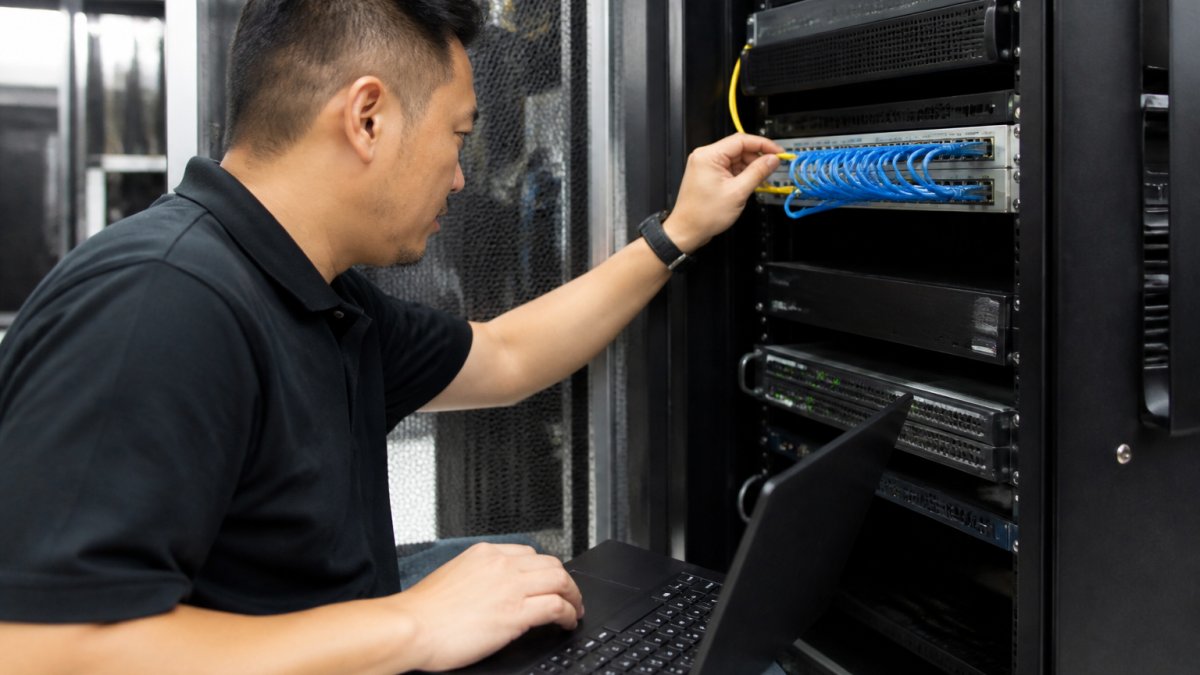
Network segmentation puts your cameras on their own network so a breach cannot spread. It is the biggest upgrade most offices skip. Here is the office-specific version.
Isolate Cameras with VLANs and Office Network Architecture
A VLAN is a virtual network that keeps devices apart even on shared hardware. The goal is a one-way relationship: the recorder can reach the cameras, and almost nothing else can.
Learn more about our services today! →
A practical office layout looks like this:
- VLAN 10, Workstations: employee laptops, desktops, printers, file servers
- VLAN 20, Cameras: IP cameras only, no other devices
- VLAN 30, Recorder (NVR/DVR): the recorder sits alone so it can talk to cameras and to your viewing station without exposing the camera VLAN
Then write firewall rules that enforce the design:
- Allow VLAN 30 (recorder) to reach VLAN 20 (cameras) on the camera management and streaming ports only
- Deny VLAN 20 (cameras) from initiating any connection to VLAN 10, 30, or 40
- Deny VLAN 20 from reaching the internet unless a specific remote-viewing method requires it
If a camera is compromised, the attacker is stuck on an island with nothing else to reach.
A VLAN alone is not a security boundary if your router passes traffic between VLANs by default. Many consumer and small-business routers allow inter-VLAN routing unless you explicitly block it. Confirm your rules are deny-by-default between the camera VLAN and everything else.
Avoid Port Forwarding and Exposed Services
Port forwarding opens a hole in your firewall and points it at a camera. It is the most common cause of exposed surveillance systems and the easiest thing to get wrong.
- Turn off UPnP on your router so devices cannot open ports on their own
- Never forward ports 80, 443, or 554 to a camera
- Use a VPN or reverse tunnel instead of forwarding
Common ports attackers probe include 80 (HTTP), 443 (HTTPS), 554 (RTSP), 8000 (NVR web interfaces), 8080 (alternate HTTP), and 37777 (some DVR brands). If any answer from outside your network, you have a problem.
Verify the Segmentation Actually Works
Configuration is not verification. Test it:
- From a workstation on VLAN 10, try to open the camera's web interface by IP. It should fail.
- From the camera VLAN, try to ping a workstation. It should fail.
- From outside your network, scan your public IP for the ports listed above. Nothing should answer.
- Check the firewall log after a day. You should see denied camera-to-internet attempts, not silence.
If you are not sure whether a port is open, run a scan from outside your network. If you can reach the camera login page from a coffee shop, so can anyone else.
A Note on Physical Segmentation
If a managed switch with VLAN support is out of reach, a second router behind your main one gets you most of the way there. Less elegant, but it still separates camera traffic from workstations and blocks the flat-network problem behind most office camera breaches.
Cloud vs. Local Security Camera Storage: Security and Access Implications
Cloud vs. local security camera storage is a trade-off between convenience and control: local keeps footage on a recorder you own, cloud sends it to a vendor's servers.
- Local (NVR or DVR): You control the hardware. No monthly fee. Risk if the device is stolen or the drive fails.
- Cloud: Easy remote access and offsite backup. You depend on the vendor's security and pay a subscription.
- Hybrid: Records locally and backs up key clips to the cloud. Best balance for most offices.
Whichever you pick, encrypt the footage and limit who holds the login. The FTC guidance on protecting personal information applies to video footage that can identify people, so treat it like any other sensitive record.
Employee Access Lifecycle and Permissions Management
Employee access is the quiet risk in every camera system. People leave, roles change, and old logins stay active for years.
- Give each employee their own login, never a shared one
- Set permissions by role: managers see all feeds, staff see only their area
- Review the user list every quarter
A shared "front desk" login tells you nothing when something goes wrong. Individual accounts give you a trail.
Office Surveillance Camera Cybersecurity Checklist
An office surveillance camera cybersecurity checklist turns all of this into a repeatable routine. Run it at setup, then quarterly. The difference between a checklist that works and one that gives false comfort is verification: every item below has a way to confirm it, not just a box to tick.
Secure Configuration Checklist with Verification Steps
Credentials and accounts
Learn more about our services today! →
- Default passwords changed on every camera and the recorder, Verify: log in with the old default and confirm it fails
- Each camera has a unique password, Verify: compare against your password manager entries; no duplicates
- Two-factor authentication enabled on admin accounts, Verify: log out and back in; you are prompted for the second factor
Software and services
- Firmware updated on cameras, recorder, and router, Verify: version number in the device UI matches the vendor's latest release notes
- Auto-update or a quarterly reminder is set, Verify: the setting is on, or a calendar reminder exists
- UPnP disabled on the router, Verify: the router admin page shows UPnP off
Network
- Cameras on a separate VLAN or subnet, Verify: a workstation cannot reach a camera IP
- Port forwarding disabled, Verify: an external scan of your public IP returns nothing on 80, 443, 554, 8000, 8080, or 37777
- Remote access routed through a VPN, Verify: remote viewing only works after connecting to the VPN
Monitoring
- Login activity reviewed for unknown devices, Verify: the recorder's access log shows only known accounts and IPs
- User list reviewed and old accounts removed, Verify: every account maps to a current employee or vendor
Verify each step. A checklist that is signed but not tested is worse than no checklist, because it hides the gap.
Incident Response and Evidence Preservation
If a camera is breached, act fast and keep the evidence intact, wiping a device destroys the logs you need to understand what happened.
- Isolate, do not wipe. Disconnect the affected camera or recorder from the network. Leave the storage and logs in place.
- Preserve the evidence. Export the recorder's access logs, event logs, and any relevant footage to a separate drive before you change anything. Note the time and date of the export.
- Change credentials. Reset passwords on the affected device, the recorder, the router, and any cloud account tied to the system. Assume the attacker saw everything those credentials could reach.
- Review access logs. Look for logins from unknown IPs, out-of-hours access, and accounts that should have been disabled. Document what you find.
- Check for lateral movement. Review workstation and server logs for signs the attacker moved off the camera network. This is why segmentation matters.
- Notify the right people. If footage or personal data was exposed, follow your organization's breach notification obligations. The FTC guidance on protecting personal information and state breach-notification laws may apply to video that identifies people.
- Contact the vendor or your IT team. Vendors can confirm whether a known firmware vulnerability was involved and whether a patch exists.
The NIST Cybersecurity Framework offers a clear structure for responding to and recovering from these events, organized around identify, protect, detect, respond, and recover.
Keep a one-page incident response sheet taped inside the recorder cabinet. In a real breach, nobody wants to search for the procedure. The sheet should list who to call, where the logs live, and the order of steps above.
Conclusion: Next Steps for Ongoing Camera Security
Camera security is not a one-time job. Firmware ages, staff change, and new devices join the network; the offices that stay safe review their setup on a schedule.
If you would rather hand this off, Computer Experts Corp handles it. We design segmented networks, install surveillance systems, and provide 24/7 IT support so your cameras stay locked down.
Get started with Computer Experts Corp and keep your office surveillance cameras secure from unauthorized remote access.
Frequently Asked Questions
How can I prevent unauthorized access to security cameras?
Preventing unauthorized access starts with changing every default username and password, using unique strong passwords for each camera and administrator account, and enabling multi-factor authentication where supported. Next, isolate cameras on a separate VLAN, avoid port forwarding, and require a VPN for remote viewing. Regularly update firmware, review access logs for suspicious activity, and remove unused accounts. These steps close the most common entry points attackers use to reach camera footage.
Should office security cameras be connected to the internet?
Cameras should not be directly exposed to the internet. Connecting them to the internet without protection allows attackers to scan for open ports and default credentials. Instead, keep cameras on a segmented network with no direct internet access. For remote viewing, use a VPN or a cloud service that establishes an outbound connection. This approach limits exposure while still providing secure remote access when needed.
How often should I change security camera passwords?
Change camera passwords at least every 90 days, or immediately if an employee with access leaves the company or you suspect a breach. More importantly, never reuse passwords across cameras or other systems. Use a password manager to generate and store unique credentials. If your cameras support it, enable multi-factor authentication to add a second layer of protection beyond just passwords.
Are local servers more secure than the cloud for camera storage?
Local storage gives you physical control, but it requires you to manage security, backups, and remote access yourself. Cloud storage shifts patching and uptime to the provider, often with encryption and SOC 2 compliance, but you rely on their security. For many offices, a hybrid approach works best: local recording for immediate needs and encrypted cloud backup for redundancy. The right choice depends on your risk tolerance and IT resources.