 how-to
How to Recover from Network Failure: 2026 Guide
Table of Contents
- Step 1: Identify the Scope of the Network Failure
- Essential Network Troubleshooting Steps for Any Outage
- Using Network Diagnostic Tools to Pinpoint the Problem
- Advanced Software Fixes: DNS, Winsock, and Drivers
- Mobile vs. Desktop Recovery Workflows
- Building a Business Network Disaster Recovery Plan
- Security Implications of Network Failure Recovery
- Frequently Asked Questions
Last Updated: September 20, 2026
Step 1: Identify the Scope of the Network Failure
A network failure is any disruption that stops devices from reaching the internet, shared files, or each other. The first move in how to recover from network failure is not rebooting everything. It is figuring out how big the problem is.
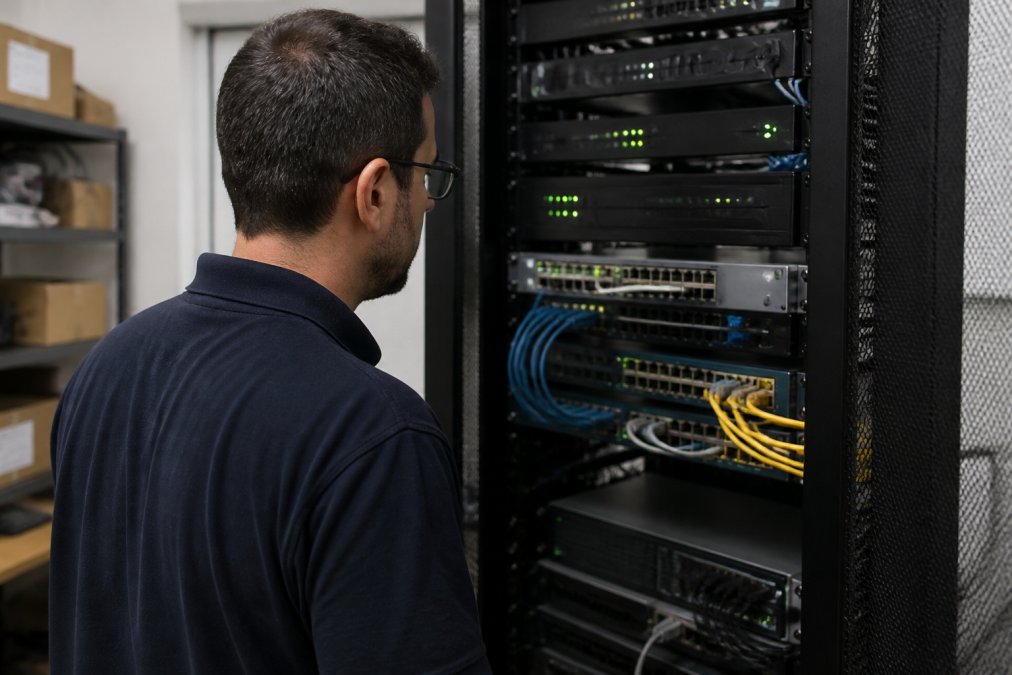
Ask one question: one device, or every device?
- One device down: the issue is local. Check that device's adapter, cable, or Wi-Fi settings.
- Every device down: the problem sits with your router, modem, or internet provider.
That answer saves an hour of guessing.
Local Outage vs. ISP Outage
A local outage means your own gear failed. An ISP outage means your provider's network is down and nothing on your end can fix it.
Here is a fast way to tell them apart:
- Unplug your router from the modem.
- Plug a laptop straight into the modem with an Ethernet cable.
- If the laptop gets online, your router is the problem.
- If it does not, the issue is likely upstream.
Essential Network Troubleshooting Steps for Any Outage
Most outages trace back to a loose cable or a frozen router. Work through the physical layer first, it solves the majority of calls.
Physical Connection Checks
Loose or damaged cables cause a surprising share of connectivity issues. Walk the full path from wall to device.
- Check that the Ethernet cable clicks into the router and the wall jack.
- Look for kinks, cuts, or chewed spots along the cable run.
- Confirm the router's power light is solid, not blinking or off.
- Reseat the modem's coax or fiber connection.
Power Cycling Your Hardware
A full power cycle clears stuck states a simple restart will not. Order matters.
- Unplug the modem and the router.
- Wait a full 60 seconds. This lets capacitors drain.
- Plug in the modem first and wait for its lights to stabilize.
- Plug in the router next and wait two minutes.
- Test the connection on one wired device.
Using Network Diagnostic Tools to Pinpoint the Problem
Built-in tools tell you where the signal stops. What most guides skip is the order to run them in and what each result rules out. Use the flow below.
The Diagnostic Flow, in Order
Run these top to bottom. Stop at the first failure; that is your fault domain.
- Ping the loopback address,
ping 127.0.0.1. A failure here means the TCP/IP stack on the device itself is broken, not the network. Reinstall the adapter driver before anything else. - Ping your default gateway, run
ipconfig(Windows) orifconfig/ip addr(Mac, Linux) to find it, thenpingthat address. A failure means the problem is between your device and the router: cable, Wi-Fi association, or the router's LAN port. - Ping a public IP,
ping 8.8.8.8. A failure here but success at the gateway means the router is not forwarding traffic upstream. Check the modem and the provider link. - Ping a domain name,
ping example.com. If the IP ping works but the name fails, DNS is the culprit. Jump to the DNS fixes below. - Run a trace route,
tracerton Windows,tracerouteon Mac or Linux. The last hop that responds is where the chain breaks. A break inside your first two hops is your gear; a break several hops out is the provider's.
Reading the Results Without Guessing
169.254.x.xaddress, the device never reached the DHCP server. The router is not handing out leases, or the cable/Wi-Fi link is down.Request timed outon every hop, a firewall or the provider is dropping ICMP. Trypingto a web address in a browser before assuming the link is dead.- High and rising latency on one hop, a congested or failing link, not a full outage. Note the hop and escalate it.
- Name resolution fails, IP works, DNS. Flush the cache, then try a public resolver like
1.1.1.1or8.8.8.8to confirm.
Cloud-Native Failures Most Guides Ignore
If your workload runs in the cloud, the desktop playbook only gets you halfway. The failure is often a control-plane or routing object, not a cable. Check these in order:
- Security group and network ACL rules, a rule change can silently block traffic even though the instance is healthy. Compare the current rules against your last known-good state.
- Route tables, a missing or misdirected route sends traffic to a black hole. Confirm the subnet's route table points to the right gateway or NAT.
- DNS records, a stale or wrong record in your hosted zone looks identical to a local DNS failure. Query the record directly with
nslookupordigagainst the authoritative name server. - Load balancer health checks, targets marked unhealthy are removed from rotation. A green instance behind a red health check is still offline to users.
- Service quotas and limits, hitting an elastic IP or connection limit can present as a network outage. Check the provider's service health dashboard before you rebuild anything.
Official guidance on reading traceroute and ping output
Advanced Software Fixes: DNS, Winsock, and Drivers
When hardware checks pass and the signal still fails, the fault is often in software. Three fixes cover most cases: the DNS cache, the Windows TCP/IP stack, and your network adapter driver.
| Symptom | Likely Cause | Fix |
|---|---|---|
| Connected, no internet | Stale DNS cache | Flush DNS cache |
| Pages fail to load | Damaged TCP/IP stack | Run winsock reset |
| Random drops | Outdated driver | Update network adapter driver |
| One device offline | Bad adapter or cable | Swap cable, reinstall driver |
Mobile vs. Desktop Recovery Workflows
Phones and laptops fail for different reasons, so the recovery path differs.
- Toggle airplane mode on and off to force a fresh connection.
- Forget the Wi-Fi network and rejoin it.
- Restart the phone to clear the network stack.
- Check if other apps work to rule out a single-app issue.
Building a Business Network Disaster Recovery Plan
A business network disaster recovery plan is a written set of steps your team follows when the network goes down. Without one, every outage becomes a scramble. What separates a plan that works from one that sits in a drawer is whether it names numbers, owners, and test dates.
Start With Targets, Not Steps
Before you write a single procedure, set two numbers for every critical system:
- Recovery time objective (RTO), how long the system can be down before the business feels it. A point-of-sale terminal might be 15 minutes. A reporting server might be 24 hours.
- Recovery point objective (RPO), how much data you can afford to lose, measured in time. An RPO of one hour means you need backups or replication at least that often.
Build the Inventory and the Call Tree
- List every critical system, its owner, its RTO, and its RPO.
- Document who to call, in order: internal IT, the internet provider, the hardware vendor, and any managed service provider.
- Keep a printed copy. Cloud files are useless when the network is dead.
- Record the last known-good configuration for your router, firewall, and switches so you can restore to a known state instead of rebuilding from memory.
Redundancy That Actually Fails Over
Redundancy only counts if it takes over without a human. Two internet lines that require someone to swap a cable are a spare, not redundancy.
- Dual WAN with automatic failover, a router or firewall that detects the primary link dropping and moves traffic to the secondary within seconds. Test the failover, do not assume it.
- Cellular backup, a LTE or 5G modem as the secondary path keeps a small office running when the wired line is cut. Watch the data cap; video and large transfers burn through it fast.
- Redundant power, a UPS on the modem, router, and core switch covers short outages and brownouts. Size it to your actual load, not the box label.
- Diverse paths, two lines from the same provider often share a single point of failure. A second provider on a different physical route is the stronger option when the budget allows.
Out-of-Band Access When the Main Network Is Down
If the network is down, you cannot reach the router through the network. Out-of-band management gives you a separate path:
- A dedicated management port on a separate VLAN or a cellular console server.
- A serial console connection to the router or switch so you can recover a device that will not boot to the network.
- A remote power switch (PDU) so you can hard-cycle a frozen device without sending someone to the site.
Test the Plan on a Schedule
| Element | What to Document | How Often to Test |
|---|---|---|
| RTO and RPO per system | Target times and owners | Annually |
| Dual WAN failover | Detection time, switchover time | Twice a year |
| Backup restore | Last successful restore date | Quarterly |
| Out-of-band access | Console and power paths | Annually |
| Call tree | Names, numbers, escalation order | Twice a year |
Security Implications of Network Failure Recovery
Watch for these risks:
- Disabling the firewall to "test" the connection, then forgetting to turn it back on.
- Joining unknown Wi-Fi networks as a quick workaround, exposing company data.
- Reusing old passwords on replacement gear.
- Skipping firmware updates on a router you just reset.
For regulated practices, an outage also raises compliance questions. A break in service can interrupt protected records, so your recovery plan should note how you protect data during downtime. A managed IT partner can help you build that in from the start.
Frequently Asked Questions
What is the most common cause of network failure?
The most common cause is a physical disconnection or hardware malfunction. This includes unplugged or damaged LAN cabling, a router that needs a reboot, or a failed network interface card. For businesses, a misconfigured firewall or an expired DHCP lease can also halt connectivity. Start by checking physical connections and power-cycling your router and modem before moving to software diagnostics.
How do I troubleshoot a sudden network failure?
Follow a logical sequence: first, check if other devices are affected to determine if it is a local or ISP issue. Then, verify all physical connections and power-cycle your modem and router. If the problem persists, use network diagnostic tools like ping and traceroute to test connectivity. Finally, check your network adapter settings and update drivers. This methodical approach isolates the fault quickly.
What are the first steps to take when a business network goes down?
Immediately activate your business network disaster recovery plan. First, identify the scope: is it a single department, the whole office, or a cloud service outage? Next, check critical hardware and ISP status. If internal, begin network troubleshooting steps like power-cycling core switches. Communicate with staff about the outage and estimated recovery time to maintain operations.
What role does a disaster recovery plan play in network failure?
A disaster recovery plan (DRP) provides a pre-defined roadmap to minimize downtime and data loss. It specifies roles, communication protocols, and recovery time objectives. For network failure, a DRP outlines failover procedures for critical systems, such as switching to a backup internet connection or cloud-based services. It turns a chaotic event into a manageable process, protecting your business.
Network failures will happen. What separates a minor blip from a costly day is how fast and how safely you recover. Computer Experts Corp helps businesses across the Bay Area build that resilience before they need it, with 24/7 IT support, on-site and remote help, network design, and cloud solutions built for medical, legal, and growing teams. Get started with Computer Experts Corp and turn your next outage into a short interruption instead of a lost day.